Live driver map
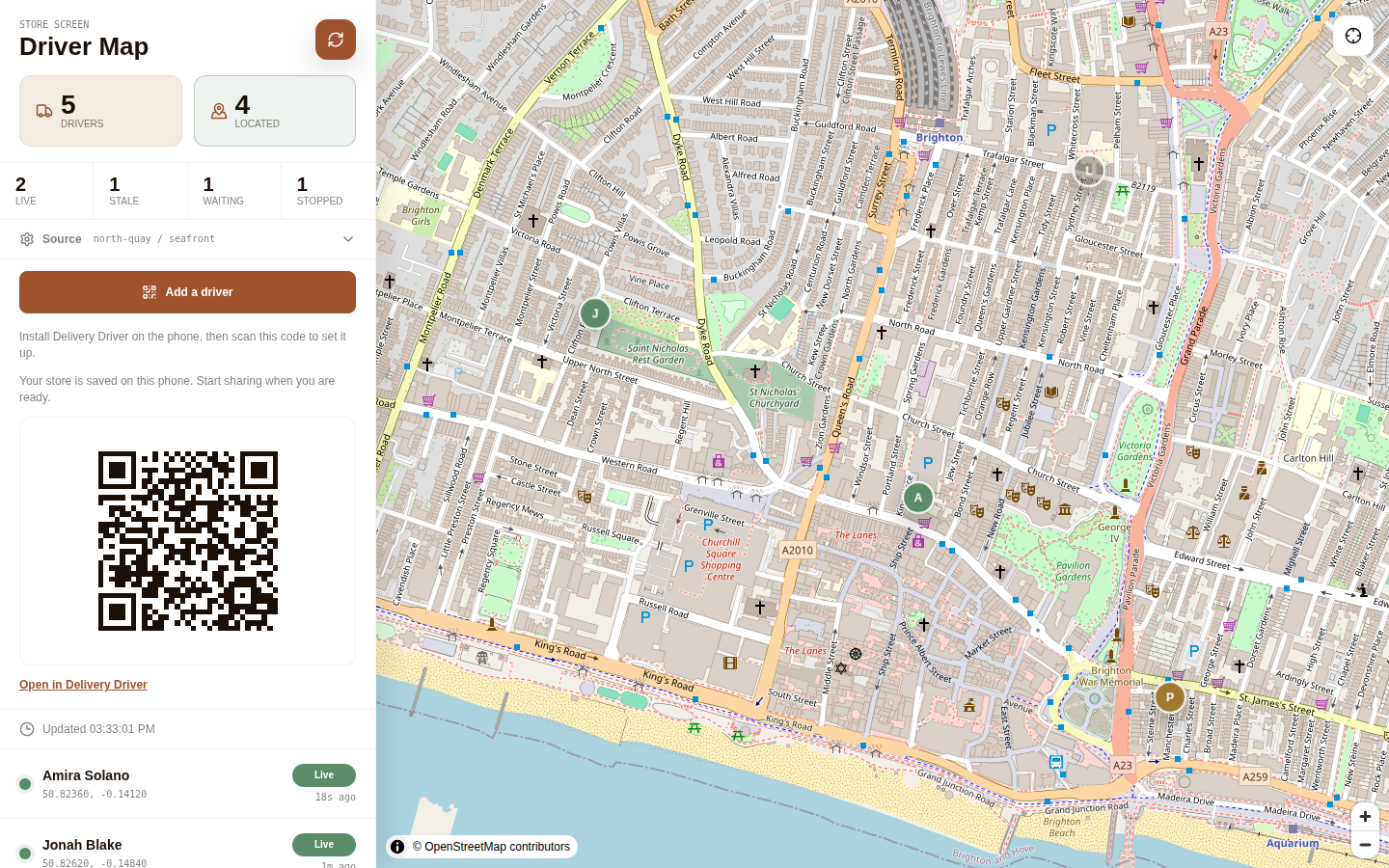
See your own delivery drivers on one map, and set up each driver's phone from that map.
Switch it on
- On the POS, open Settings.
- Find Delivery Map and turn Enabled on. It stays on.
- Go back to the home screen and tap Delivery Map.
If you do not see Delivery Map in Settings, ask us to switch it on.
Add a driver
Do this with the driver before they leave.
- On the map, tap Add a driver.
- Install Delivery Driver on the driver’s iPhone or Android phone if it is not there yet. Ask us and we will send it.
- Open the phone’s camera and scan the code.
- Tap Setup. Enter the driver’s name, leave the other details as they are, and tap Save setup.
- If you see Enable Location, tap it. On an iPhone, open Settings, then Delivery Driver, then Location, and choose Always. On an Android phone, choose Allow all the time. If the phone asks to show notifications, allow them.
- Tap Start Sharing.
Each driver scans the same code and enters their own name.
What the driver does
The driver can lock the phone. Sharing continues.
When the shift ends, they open Delivery Driver and tap Stop Sharing.
If they close the app completely, they open it again and tap Start Sharing.
If something looks off
The code will not scan. Install Delivery Driver first, then scan with the phone’s camera.
The driver is not on the map. On the phone, tap Start Sharing. Location must be Always on iPhone, or Allow all the time on Android.