Clock In and Out from the POS
Staff Clock lets restaurants track clock-ins, breaks, manager corrections, and payroll-period totals from the POS.
Staff timekeeping works best when it happens where the work already happens: at the POS.
Staff Clock gives restaurants a POS-connected way to record shifts and breaks, review labor during service, and prepare cleaner totals for payroll.
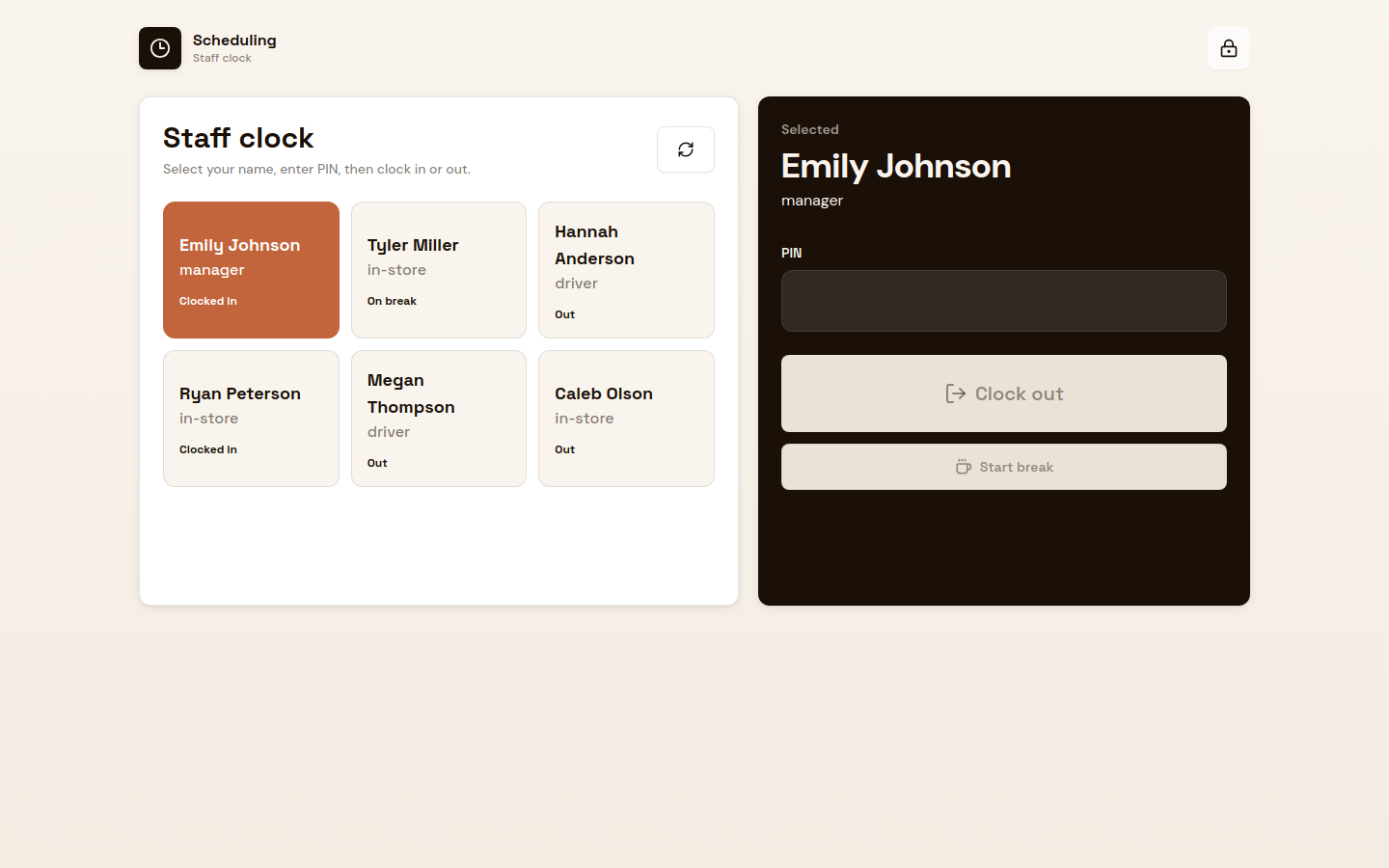
Quick staff timekeeping during service
Staff members choose their name, enter their PIN, and clock in, clock out, or record a break.
The goal is to keep timekeeping close to service without turning it into another manager task. Staff can handle the routine in a few seconds, and the restaurant gets cleaner time records without relying on paper notes, memory, or end-of-day reconstruction.
Manager tools for labor review
Managers can use Staff Clock to understand labor during service and clean up records after service.
Manager tools bring together the current labor picture: who is clocked in now, how much labor has been recorded today, and labor percentage when sales are connected. Managers can sync sales for the day and compare labor against net sales without keeping timekeeping and sales context in separate places.
That matters during a shift. A manager can check whether the right people are on the clock, catch an open shift before it turns into a payroll problem, and understand the day’s labor position while service is still happening.
Payroll-period totals
Staff Clock also summarizes labor for the current 4-week payroll period.
Managers can review each active employee, their role, total hours, and estimated gross pay based on the hourly rate saved for that employee. This gives the restaurant a practical payroll review step before exporting or entering totals elsewhere.
Day-to-day review stays flexible. Managers can look into specific days or the full payroll period without losing sight of the numbers that matter for pay.
Corrections with an audit trail
Missed punches happen. Someone forgets to clock out. A break is entered wrong. A manager needs to add a shift after the fact.
Staff Clock treats those corrections as normal restaurant operations, but not as silent edits. Managers can add a missing shift, edit clock times, update break minutes, or delete a mistaken shift. A reason is required for manager changes, and deletions require an explicit confirmation step.
That gives the restaurant a cleaner labor record while preserving accountability for payroll-relevant changes. Managers can fix the record, and the restaurant still has a clear trail for why the change was made.
Manage staff and PINs
Managers also control which employees appear in Staff Clock.
Managers can add employees with a name, role, hourly rate, and staff clock PIN. PINs are stored securely and are not shown again after setup. If an employee changes role or rate, the manager can update the employee record. If someone no longer needs to clock in from the POS, they can be deactivated without removing historic shifts and payroll records.
That matters because staff time is not just a live-service detail. It becomes payroll, labor reporting, and an audit trail for corrections made after service.
Built into the POS rhythm
Staff Clock is designed to sit close to the POS, not off in a separate workforce system that staff have to remember during service.
Restaurants that use the feature can enable the Staff Clock shortcut in POS settings. Restaurants that do not use it can leave it off, so teams only see the tool when it is relevant to their operation.
When enabled, a “Clock in/out” action appears on the POS home screen and opens Staff Clock. With that shortcut in place, staff can record shifts and breaks from the POS, and managers can review the labor records they produce.
This release keeps the scope practical: shifts, breaks, corrections, staff setup, labor review, and payroll preparation. It also creates a foundation for deeper scheduling and payroll tools over time.
How to enable Staff Clock
To turn on Staff Clock, enable the POS shortcut from the POS settings:
- Open Settings from the POS.
- Find the Staff tool section.
- Turn Enabled on.
- Use Open test to confirm the Staff Clock opens from that POS.
- Return to the POS home screen and use Clock in/out to launch Staff Clock during service.
After the shortcut is enabled, a manager should open Staff Clock, sign in to manager tools, and add the employees who should be able to clock in from the POS. Each employee needs a name, role, hourly rate, and 4 to 8 digit PIN.
If you do not see the Staff tool section, make sure the POS app is up to date or contact support.